

boAt BassHeads 901 Pro
Premium Wired Headphones with Powerful Bass & All-Day Comfort
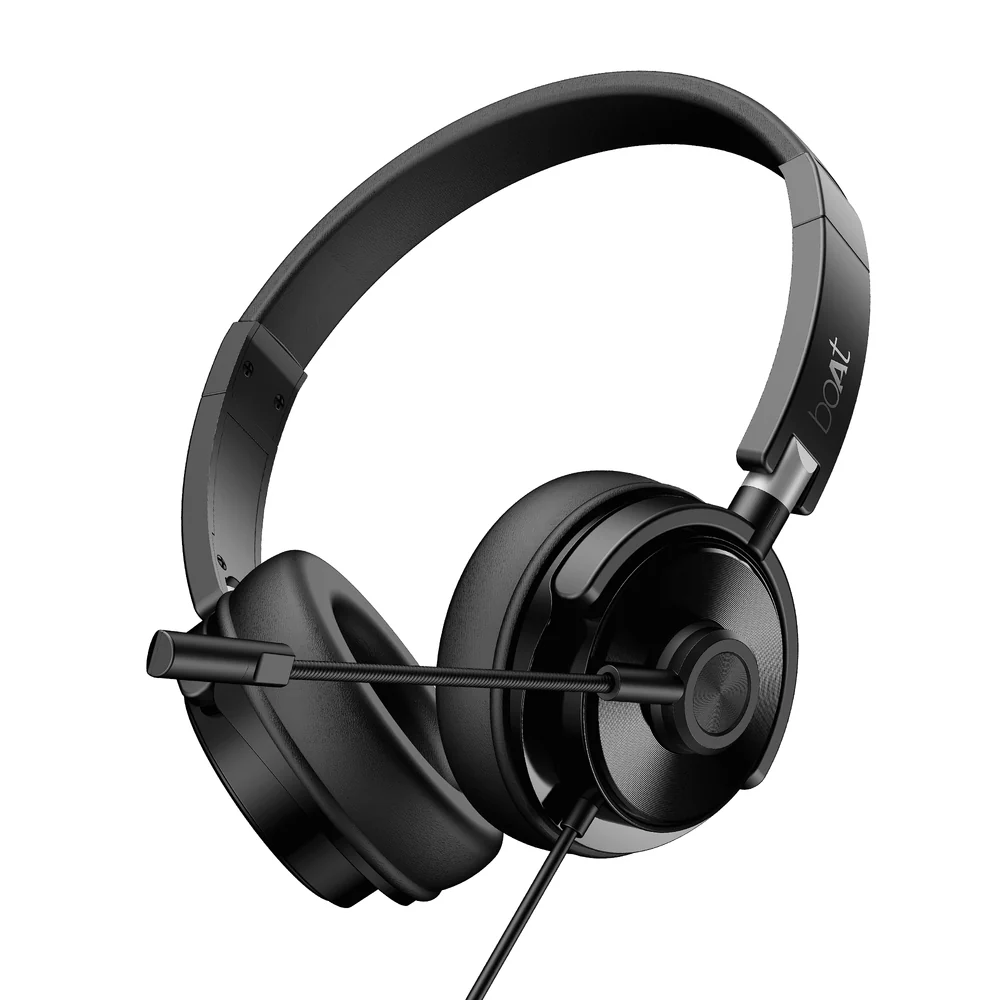
Powerful Bass Experience
The BassHeads 901 Pro delivers premium audio with:
- 40mm Drivers – Powerful bass and immersive sound
- 98dB Sensitivity – Clear, high-quality audio
- 1.5m Cable with USB Type-A Connection
- Built-in Microphone – For calls and voice commands
- All-Day Comfort – Sleek, lightweight design
- Professional Grade – 40mm driver precision
🎧 Meet the boAt BassHeads 901 Pro—crafted to deliver powerful bass and immersive sound in a sleek design. With all-day comfort and seamless connectivity, they’re built to keep up with your rhythm.
Complete Specifications
| Specification | Details |
|---|---|
| Product Type | Wired Headphones |
| Connectivity | USB Type-A |
| Driver Size | 40mm Full-Range Driver |
| Sensitivity | 98dB ± 3dB |
| Impedance | 32Ω ± 15% @ 1KHz |
| Rated Power | 5W |
| Cable Length | 1.5 meters |
| Microphone | Built-in, -42dB ± 3dB Sensitivity |
| Design | Lightweight, Over-Ear, Comfortable |
Getting Started
🔌 Connect Your Headphones
- Locate USB Port: Find the USB Type-A port on your computer or device
- Connect Cable: Insert the USB cable into the port – automatic driver installation begins
- Set as Default: Right-click Sound icon in system tray → Playback Devices
- Select Device: Select “BassHeads 901 Pro” from the list
- Set Default: Right-click and select “Set as default device”
- Enable: Right-click and hit “Enable” if disabled
- Ready to Use: Your headphones are now active and ready for audio
Features & Benefits
🎵 Audio Quality
- 40mm drivers for powerful bass
- 98dB sensitivity for clarity
- Professional audio tuning
- Balanced frequency response
🎧 Comfort
- Lightweight design
- Over-ear fit
- All-day wearability
- Ergonomic padding
📞 Connectivity
- USB Type-A plug & play
- No separate drivers needed
- Compatible with PC & Mac
- 1.5m cable for flexibility
🎤 Microphone
- Built-in premium microphone
- Clear voice capture
- Calls & video conferencing
- Voice commands support
Setup & Configuration
Windows Setup
- Connect USB cable to your computer
- Windows will automatically detect and install drivers
- Right-click the Sound icon in the system tray (bottom right)
- Select Playback Devices
- Look for “BassHeads 901 Pro” in the list
- If not visible, right-click empty space and enable “Show Disabled Devices”
- Right-click “BassHeads 901 Pro” and select “Set as Default Device”
- Click “Apply” and “OK” to confirm
- Your headphones are now ready to use
Mac Setup
- Connect USB cable to your Mac
- Go to System Preferences
- Select Sound
- Click the Output tab
- Select “BassHeads 901 Pro” from the list
- Adjust volume as needed
- Your headphones are now active
Using Microphone
If using third-party applications (Zoom, Skype, Discord, etc.):
- Open the application settings
- Go to Audio or Sound settings
- Select “BassHeads 901 Pro” for both Microphone and Audio Output
- Test microphone before important calls
Troubleshooting Guide
Audio Issues
Volume is low
Solution: Check volume levels on both the headset and your connected device:
- Check the volume wheel/slider on the headphones
- Check Windows/Mac system volume settings
- Check application volume settings (media player, browser, etc.)
- Check if audio is muted in playback devices
- Verify headphones are set as default playback device
- Restart the application if volume remains low
Connection Issues
Headphones not detected by computer
Solution: The headset might not be set as the default device. Follow these steps:
- Right-click the Sound icon in the system tray
- Select Playback Devices
- If headphones are not listed:
- Right-click in empty space
- Check “Show Disabled Devices”
- Now you should see the headset listed
- Select “BassHeads 901 Pro” from the list
- Right-click and select “Set as Default Device“
- Click “Apply” then “OK”
- Your headphones should now be detected and working
Note for Third-Party Apps: If you’re using applications like Zoom, Skype, Discord, etc., make sure you have also selected “BassHeads 901 Pro” in that application’s audio settings for both Microphone and Audio Output.
USB Connection issues
- Try a different USB port on your computer
- Try the headphones on a different computer if possible
- Check USB cable for damage or fraying
- Restart your computer and reconnect
- Update your audio drivers (check device manufacturer website)
- Disable other USB audio devices temporarily
Frequently Asked Questions
What is the cable length?
The BassHeads 901 Pro has a 1.5 meter (approximately 5 feet) USB Type-A cable, providing adequate length for most desktop and laptop setups.
Is it compatible with Mac?
Yes, the BassHeads 901 Pro is fully compatible with Mac computers. Simply connect the USB cable and set it as the default output device in System Preferences → Sound.
Can I use it for gaming?
Yes! The 40mm drivers and 98dB sensitivity make the BassHeads 901 Pro excellent for gaming. The powerful bass and clear audio are perfect for immersive gaming experiences.
Does it work with smartphones?
The BassHeads 901 Pro requires a USB Type-A port, which is typically found on computers. For smartphones, you would need a USB-C to USB-A adapter (for most modern phones). Check your phone’s port type first.
Is the microphone always active?
The built-in microphone is available whenever the headphones are connected. You can mute it in your audio settings or application settings for privacy when not in use.
Can I adjust bass levels?
The BassHeads 901 Pro has powerful hardware-tuned bass built in. You can further adjust bass using equalizer settings in your media player or system audio settings if desired.
User Manual & Documentation
📄 Download User Manual
Bassheads_901_Pro_User_Manual.pdf (1.4 MB)
Complete user manual with detailed setup instructions and technical specifications
Need Help? Contact boAt Support
📞 Call Us
022-6918-1920
9 AM – 7 PM IST
Closed on Sundays and National holidays
💬 WhatsApp Chat
Get instant support via WhatsApp for quick queries and troubleshooting assistance
📖 Reference: This guide is based on official boAt BassHeads 901 Pro support documentation. For the most up-to-date information, visit boAt Support