

boAt Hive DashCam M1: Premium 2K dash camera with built-in GPS, 512GB storage support, advanced parking modes, HiveCam app control, and comprehensive 24/7 vehicle security.
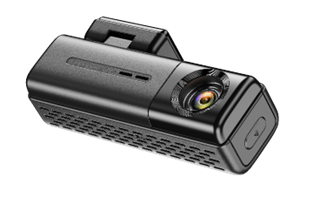
Product Overview
The boAt Hive DashCam M1 is a premium vehicle security system capturing every detail with stunning 2K resolution (2560 x 1440P) and built-in GPS. Features include 24/7 continuous recording, advanced parking modes, massive 512GB storage support, and real-time HiveCam app control.
Technical Specifications
| Specification | Details |
| Model | boAt Hive DashCam M1 |
| Display | 0.96-inch Display |
| Video Resolution | 2K (2560x1440P) or 1920x1080p 30fps |
| USB Interface | USB Type-C |
| Microphone | Built-in (Records in-car audio) |
| Speaker | Built-in (Audio output and notifications) |
| Storage Support | Up to 512GB (Class 10 U3 Speed) |
| GPS | Built-in GPS with location tracking |
| Wi-Fi | Built-in (10 ft range without obstacles) |
| Operating Temperature | -10°C to +60°C |
Hardware Components
- Sticker Mount: Electrostatic adhesive mount for secure windshield attachment
- Lens: High-quality lens recording detailed road footage
- 0.96″ Display: Status indication screen and menu interface
- Micro SD Card Slot: Supports up to 512GB cards
- Type-C USB Port: Power supply and data transfer
- Microphone: Records in-car audio along with video
- Speaker: Audio playback and device notifications
- Wi-Fi Key Button: Multi-function control button
- Reset Button (R Hole): Device reset and recovery
Installation Guide (8 Steps)
Step 1-8 Installation Process:
- Prepare vehicle and insert microSD card (Class 10/U3, up to 512GB)
- Identify optimal location behind rearview mirror at windshield center
- Clean glass area thoroughly with soft tissue
- Apply electrostatic sticker mount to windshield
- Mount camera to sticker with double-sided tape
- Adjust lens angle by rotating Mounting Head
- Connect power via cigarette lighter to Type-C USB port
- Turn on engine – dashcam auto powers on and starts recording
Important: Always use original 5V/1.5A USB Car Charger. Auto powers down when engine turns off.
HiveCam App Setup (4 Steps)
- Download from App Store (iOS 12.0+) or Google Play (Android 7.0+)
- Register or Login – grant permissions for Location, Nearby Devices, Photos & Media, Notifications
- Connect to Wi-Fi – Select ‘boAt-Hive_Dashcam-M1_XXXXXX’, enter password 12345678
- View live preview – tap dashcam icon to open Live Video Preview interface
Key Features
Recording Features
- Video Resolution: 2K (2560×1440) or 1920x1080p 30fps
- Loop Recording: Auto-overwrite old files when card full. Options: 1 min (default), 2 min, 3 min
- Audio Recording: Captures ambient sound and conversations. Toggle On/Off
- G-Sensor: 3-axis accelerometer detects impact, auto-locks emergency files. Levels: Off/Low/Medium/High
Advanced Features
- Parking Modes (requires hardwire kit): Time-Lapse (1fps), Collision Detection (OFF until impact), Normal Recording (continuous)
- Fatigue Driving Reminder: Beeps every 2 hours. Options: Off (default) / 1H / 2H / 4H
- Voice Control: ~90% accuracy. Say commands like “Show front camera”, “Take picture”, “Lock the video”, “Turn on Wi-Fi”
- Video Stamps: Display speed, GPS info, date/time, logo, model on recordings
Wi-Fi Key Functions
| Action | Function |
| Short Press | Toggle Wi-Fi ON/OFF |
| Double Press | Toggle Audio Recording ON/OFF |
| Long Press (3s) | Lock video (Emergency file) |
| Long Press (8s) | Format SD card and restore defaults |
Frequently Asked Questions
What microSD card should I use?
Class 10, U3, A2 Speed cards up to 512GB. Avoid counterfeit/slow cards. Format periodically (every 1-2 months if used frequently) for optimal performance.
How do I download videos to my phone?
Stop recording [arrow] HiveCam app [arrow] “Dashcam Albums” [arrow] select Videos [arrow] tap Download. Files save to “Downloaded Files” section.
What is the default Wi-Fi password?
12345678. Change it in Settings [arrow] System Settings [arrow] Wi-Fi.
Can I watch videos remotely or in cloud?
No. Works only within 10 ft via local Wi-Fi. No cloud or remote streaming support.
Why is my recording discontinuous with gaps?
Motion detection enabled – disable for continuous recording. Or verify microSD card is inserted and has space.
What should I do if dashcam keeps turning on and off?
Use original 5V/1.5A USB Car Charger (avoid phone chargers, power banks). Try different outlet or cigarette lighter socket. If using hardwire kit, check voltage output.
Can I use dashcam without the app?
Yes, records continuously. But app provides live preview, downloading, settings control, GPS data, parking modes, and audio control.
How do I reset the dashcam?
Via App: Profile [arrow] Default Settings [arrow] Reset [arrow] Confirm. Or insert pin into Reset hole for 2-3 seconds. Recordings not affected.
Why can’t I find the dashcam Wi-Fi?
Check: dashcam is ON with indicator light on, Wi-Fi enabled (short press Wi-Fi key), phone’s Wi-Fi is ON, phone within 2 meters, location permissions enabled. Wi-Fi range max 10 ft.
Troubleshooting
Dashcam Not Powering On: Use original charger. Check cigarette lighter socket. If hardwired, verify connections.
No Sound During Playback: Enable Audio Record in settings. Double-press Wi-Fi key for audio.
Poor Video Quality: Clean lens with soft cloth. Remove protective film. Wipe windshield.
App Connection Issues: Disable mobile data. Bring phone within 2 meters. Restart both devices.
Dashcam Overheating: Ensure ventilation not blocked. Avoid direct sunlight. Remove if temp exceeds 70°C.
Contact Support
Phone: 022-6918-1920 (9 AM – 7 PM IST)
WhatsApp: Launch Chat
Official Support: boAt Hive DashCam M1 Support Page
Pro Tip: Use original 5V/1.5A charger for optimal performance and to prevent reboots or flickering.
Note: Based on official boAt documentation. Visit official support page for latest updates.